Support our Sponsors!

Stop by every day to shop our new Deal of the Day at Barnes & Noble!

Tuesday, May 8, 2012

iPadimation Tutorial 1: Character Design on the iPad

One of the most rewarding experiences for an artist is seeing their work brought to life through animation. Thanks to the iPad, it's never been easier to design, produce, and distribute your own cartoons.

Over the next few posts, I will be covering the process for converting your static designs into dynamic animated characters starting with today's tutorial on character design.

DUM is the new Smart
One of the benefits of computer animation is the ability to create animated segments from a single drawing. I call this streamlined approach to animation the DUM method (Draw once, Use Many).

Using the DUM method, it's possible to transform a single sketch into a full cartoon simply through the use of vector based character design.

Tools
To take advantage of the DUM method, we will create a vector based character design using an app called iDraw.

For those new to vectors, vector art is created from basic shapes and lines using a computer. Vector based graphics can easily be reused and manipulated, making it well suited for animation. In fact, vector based animation now dominates commercials and TV cartoons thanks to desktop programs such as Illustrator and Flash.


Vectors can be used to quickly create characters by combining simple shapes


Vectors can also be used to create more complex art

I've used many different vector art programs but I find iDraw on the iPad to be the most functional and intuitive vector art program to be found anywhere. iDraw makes it easy to export your designs with transparent backgrounds, something that is essential for animation.

If you've never used iDraw before, I recommend taking a moment to review these iDraw tutorials:

Better Living Through Vectors:
http://flamingstylus.blogspot.com/2011/04/better-living-through-vectors.html

Vintage Art with Vectors:
http://flamingstylus.blogspot.com/2011/05/vintage-art-with-vectors.html

Now for the DUM Tutorial

Step 1: Prepare the Workspace
To start, create a new workspace in iDraw using the landscape layout. This will give you plenty of room for manipulating shapes. Import a sketch to use as a template for your vector by tapping the import button:


Now create a second layer to use for tracing vectors from your sketch.

Tip: I like to import photos of art from my journals or sketches from scrap pieces of paper to use as templates for my vector art.

Step 2: Trace Vectors from Your Template
Visualize your character as groups of body parts and character traits (head, arms, legs, eyes, hair, mouth, etc.).
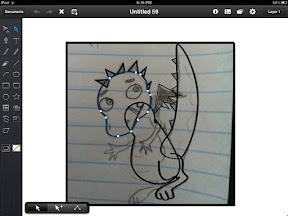


Using the brush, pencil, pen, and shape tools, begin creating shapes for each major part by tracing your sketch. I recommend keeping the number of shapes to a minimum if this is your first time working with vectors. To save time, reuse parts where possible. A body part such as the left arm can be created from a mirrored copy of the right arm.

You can use the Close Path option from the Arrange menu to close any shapes with broken lines.


Don't worry about the colors or line styles too much as we will address those in the next step.

Tip: I recommend creating round shapes first with the brush or pencil tool and then using the pen tool to add points where needed. It's easier to add corners to round shapes than it is to add roundness to square shapes

Step 3: Refine Your Design
Now that all of your shapes are created, you can make choices on styling and colors. All of the line choices can be selected from the object information menu.


You can adjust the outlines to be thick or thin or even choose to have no outlines at all.


Example of the style variations possible with vector art

Once you've applied styles and colors to all of the shapes, use the Arrange menu to order the shapes from front to back.

Finally, use the Group option under the Arrange menu to place your shapes into groups by body part. I prefer grouping parts to placing them on separate layers at this point as it is easier to make changes affecting multiple parts.

Tip: The point select tool can be used with the + option turned on to select multiple shapes by tapping on one shape at a time. This can make grouping much faster.


You can test your groupings by selecting a group, like an arm, and performing a rotation. You should see all of the shapes making up the arm rotate together.

At this point, your character design should have a finished look. Continue refining until you are satisfied with your results.
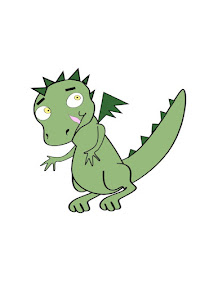


Step 4: Create Variations
Once you are satisfied with your design, you can begin creating different sets of traits such as mouths and eyes to allow your character to express emotion. iDraw will allow you to store these variations in folders using the Library menu.


I like to separate my traits out into different library folders (eyes, hair, mouths, etc) so that I can easily reuse them in future designs.

Optionally, you can make copies of your character from different perspectives using the front perspective as the starting point. For instance, the back view can easily be made from the front view by eliminating the front traits (eyes, mouths, front pockets, etc) and modifying the hair.


All of these perspectives were created from variations of the front perspective

Tip: The quarter view perspective Can be created using the Skew tool on a copy of the front perspective.


Step 5: Explode Your Design
The final step in the tutorial is to create an exploded view of your character. The exploded view separates your character into individual parts and is used for export your design into other apps for animating

You will want to separate any part that you plan on animating such as individual arms, legs or eyes. If a part will not be animated, there's no need to break it out.

For instance, if your cartoon only calls for movement in the right arm and mouth, then those are the only parts that you need to break out in the exploded view.

Sometime you might want multiple exploded views. For instance, if one scene calls for additional action you can create an exploded view that breaks your character into even more pieces. Just keep in mind that the more parts there are, the more work there is when animating a scene.
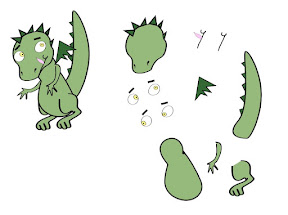


This exploded view pictured above will allow me to alternate the character's eyes and mouths as well as individually move the character's head, body, tail, arms, legs, and wing.

Wrap Up
Congratulations on completing your character design. You now know how to turn your drawings into vectors and how to prepare character designs for animation.

In the next tutorial I will get deeper into the animation process and we will create our first cartoon. In the meantime, please leave any comments or questions below.

If you like what you've seen in this tutorial, be sure to subscribe to my YouTube channel and follow me on Twitter. Most of my traffic now is related to music so be sure to tell your artist friends about the site and I will keep adding the art tutorials.

Until next time,
Milo


Saturday, April 28, 2012

Introducing iPadimation

After an extended hiatus filled with new home purchases and the birth of a baby girl, the Flaming Stylus is back!

Over the next few posts, I will be focusing on tutorials covering animation production and character design.  Here's a taste of what I'll be covering.  I think you are going to like it!


Come back soon for the first in a set of tutorials and be sure to let your friends know.

-Milo

Monday, September 5, 2011

The Future of Music Creation on the iPad

There are a lot of exciting developments occurring in the world of iOS music creation. Today I wanted to share my thoughts on those developments and what I believe the future holds for iOS musicians.

As a long-time home recording enthusiast, I was excited by the possibilities of music creation on the iPad. The implementation of core-midi opened up new opportunities for creating music with the iPad including using external hardware or linking two iOS devices through MIDI as I laid out in this tutorial: Connecting Your iPad to Your iPhone with MIDI.

Core MIDI Grows Up
A big breakthrough came in April when the Modrum app released an update supporting "virtual" ports. While initially this port sharing was limited to Bassline and Funkbox, there was clearly potential for MIDI sharing between all midi capable apps.

With a little experimenting, I found other apps capable of port sharing including iElectribe and Music Studio as seen here: Funkbox Tutorial. This port sharing it turns out was just the implementation of iOS Core Midi with multitasking. It was only a matter of time before other developers got onboard with virtual ports and we would be able to chain our favorite apps together through MIDI.

That day is here. Within the next month we will see new releases from music apps such as Polychord, Nlog Synth, Soundprism, and Sunrizer that will allow unprecedented MIDI sharing between apps. You will now be able to use Polychord or Soundprism in the foreground to play other instrument apps residing in the background such as Nlog Synth, Sunrizer, and Modrum.

polychord & Sunrizer (BETA) playing together from Shoulda Woulda Coulda on Vimeo.


But that is only half the story...

Rise of the Tabletop Apps
Over the summer another equally game changing event occurred: the release of the tabletop music apps Rhythm Studio and Tabletop. Visually these apps look like a musician's desk with multiple studio devices linked together. Instead of connecting to other apps through midi, these apps attempt to bring the capabilities of multiple apps together under one interface.

What separates the tabletop apps from other sequencers like Nanostudio is their modular approach to music creation. The drums, synths, effects, and mixers are all treated as separate modules. The flexibility of this design means that modules can be updated and added upon indefinitely. 3rd party developers could conceivably develop new modules for the tabletop as well.


These tabletop apps could accomplish the same results as a chain of apps joined together through midi without the need for app switching. In addition, the tabletop apps can record their chain of modules and export the results to audio. This is something midi port sharing has yet to accomplish, although to succeed on it's own merits, it will ultimately have to tackle.

There Will Be Convergence
I believe that these two revolutions playing out on our iPads are heading for convergence. The reason is simple: the modular design and the sequencing capabilities of the tabletop apps make them ideal for triggering music apps in the background. The background apps themselves can be treated simply as additional modules that just happen to reside outside the tabletop. The background apps would essentially be treated just like Rewired apps do today on our desktop DAWs.

Only time will tell if I'm right. Regardless of the outcome, it will no doubt be an exciting future for iOS musicians.

-Milo

Now that you've heard my thoughts. I'd love to hear your's. Leave a comment and let me know where you see iOS music going.


- Posted using BlogPress from my iPad

Sunday, June 26, 2011

Mixtikl Tutorial 2: Using Loops


This is the second of two tutorials on Mixtikl. In this video, I show you how to make music with loops from your desktop using Mixtikl.


Here's a graphic illustrating all the ways to import and export audio with Mixtikl.  For more, see the video below.

Sunday, June 12, 2011

Mixtikl Tutoral 1: Creating Generative Music

This is the first of two tutorials on Mixtikl. In this video, I show you how to use Mixtikl's library of midi loops, FX, and synthesizers to create generative music.


Products Mentioned:


Mixtikl - Generative Music Lab, Modular Synth, 12 Track Mixer & Live FX

Saturday, May 28, 2011

Vintage Art With Vectors

Difficulty: Medium.  Recommend using a stylus for tracing.

I recently got married in Hawaii. Sure, I enjoyed the beach (and maybe too many Mai Tais) but I also enjoyed a lot of art. Down town Lahaina is crammed full of shops featuring local art and a surprising amount of celebrity art. Ronnie Woods is brilliant! But I found myself being inspired by the vintage prints placed throughout the resort.

I wanted to capture the vintage look in an iPad project and found that vector art worked great. So today I'm going to show you how to do your own vintage art using the iDraw app. Your finished piece will look something like this:


If you haven't all ready, you might want to check out my first blog on vectors where I go into detail on using the iDraw app before starting this one: http://flamingstylus.blogspot.com/2011/04/better-living-through-vectors.html.

Step 1: Create the Palm Trees
To start, we need to set the background color to red from the image settings menu.


You will want to mute your colors in this project to give it a vintage look.


Next import an image of palm trees to use as a template. You can download the picture I used at this link: https://picasaweb.google.com/101992781047739709566/MyBlogPhotos#5611219019998840450.


Use the Pen tool to trace a general outline of the palm trees point by point. Then set the object color to a muted black.


Tip: You can combine separate paths into one object using Union.

Use the pencil tool to add details to the palm tree. Once the palm tree is complete, set the outline to invisible. With the Pen tool, add a yellow line along the side of the palm tree.


Set the layer to not visible and proceed to the next step.

Step 2: Create the Background Elements
For this project, we will use yellow accents to add depth and the feeling of motion.

I drew these in using the pencil tool selecting a muted yellow with a bit of orange as the fill. I set the outlines to transparent.


Now draw in a sun. Create horizontal bars using the line tool with the width set to 6. Use a muted white as the line color.


You see suns drawn this way in a lot of surf and skateboard art.


It doesn't have to be perfect. We'll cover up any imperfections with the next couple of elements like the stylized cloud below.

Using the Pen tool, create a shape stretching across the horizon allowing the background elements to peek through. Set it to the same color as the background.


On a new layer, use the Pen tool to create islands along the horizon. Set the fill to a muted black and set the outline to transparent.


Draw in yellow highlights along the islands.


You can see all the elements coming together nicely now. Let's proceed with creating the foreground elements.

Step 3: Create the Foreground Elements
On a new layer, use the Pen tool to create grass shapes in the foreground. Set the fill to a muted black and the outline to transparent.


Now set the palm tree layer to visible and adjust any of the elements that might need lining up, adjust the order of layers, or adjust any colors to blend.


Now for the final touch, we will add a hula girl to complete our piece. On a new layer import a photo for reference.

I found the one below using Google image search with the term "Hula Girl." We will be just creating a silhouette from the image so don't get hung up on the image being perfect. You mainly want to capture the position of the hands and the texture of the grass skirt.


Using the Pen tool, trace an outline of the subject. Set the fill to black and the outline to transparent.


Now remove the photo reference and adjust the layers, placing the Hula Girl between the foreground and the background layers. Using the Pencil tool, draw in a crown of flowers to accent the girl. Set the fill to yellow and the outline to transparent.


To give your image a poster look, you can add a title to your piece. I used the Optima Bold font with a shadow effect for the title below.


Your piece should be complete.


Export the image to Photo Gallery for sharing. I cropped my image further using Photogene to set it to poster dimensions.


And that's it. Drop me a comment if you have any questions or just want to share your own artwork. Until next time, Aloha.
-Milo

Posted using BlogPress from my iPad

Products Used:


iDraw

Tuesday, May 17, 2011

Intro to Funk Box

In this video tutorial, I show you how to lay down beats with the Funk Box app.  Funk Box has a groovy, retro interface, that is loaded with features.  I crack a few of those features including customizing groove boxes and routing beats to other apps through virtual ports.  Enjoy!


Funk Box is available now at the Itunes App Store:
FunkBox Drum Machine - Synthetic Bits, LLC